If you want to make any TV smarter without replacing it, Google Chromecast is one of the easiest and most flexible options.
This guide explains what Chromecast does, how it works, which model might suit you, step by step setup instructions, real use cases, troubleshooting advice, privacy considerations, and buying guidance. Read on to learn how to get the most from your Chromecast and avoid common pitfalls.
What Is Google Chromecast?
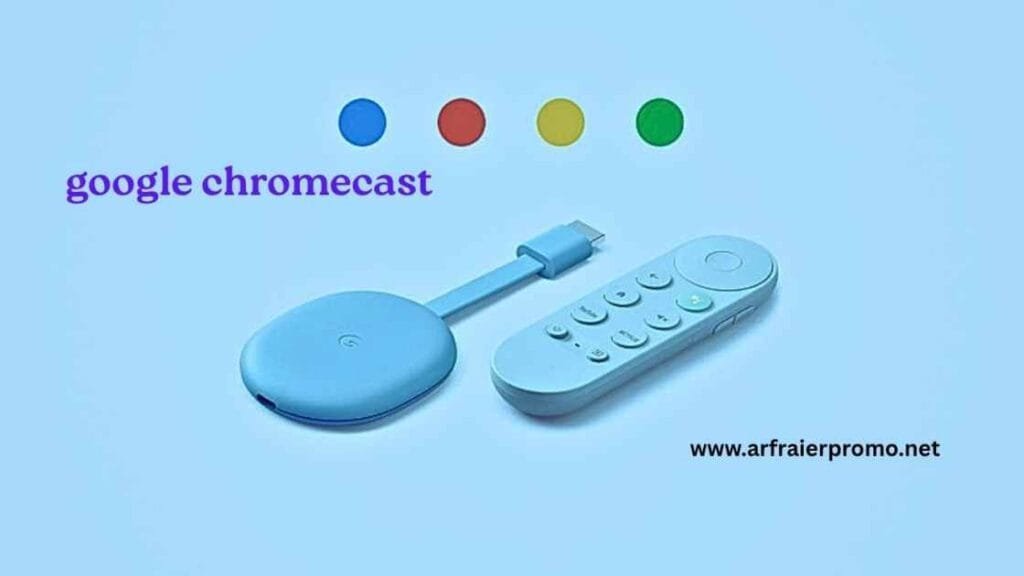
Google Chromecast is a compact streaming device that plugs into a TV HDMI port. It receives audio and video from apps on your phone, tablet, or computer and displays them on your TV. Newer Chromecast models include a full TV interface and a remote, while older models act as receivers that rely on a phone or computer to control playback. Chromecast supports streaming up to high resolutions on compatible models and works with a wide range of apps that implement casting features.
How Chromecast Works — A Simple Explanation
Chromecast uses a casting protocol that lets sending devices tell the Chromecast which content to play and where to fetch it from the internet. In many cases your phone acts like a remote control while the Chromecast streams the content directly from the internet. That design keeps streaming smooth and lets you use your phone for other tasks without interrupting playback on the TV.
Main Chromecast Models and Differences
Chromecast has evolved from a simple dongle to devices with full smart TV interfaces. Here are the main models and how they differ:
- Chromecast with Google TV 4K: Supports 4K HDR, includes a voice remote, and offers a full TV interface with apps and recommendations.
- Chromecast with Google TV HD: Similar interface and remote but limited to 1080p resolution.
- Older Chromecast dongles: Act only as casting receivers without a built-in app store or remote. They are simple and inexpensive.
When choosing, consider whether you want a remote and a TV interface or just a low-cost casting solution.
Why Chromecast Is Useful — Real World Benefits
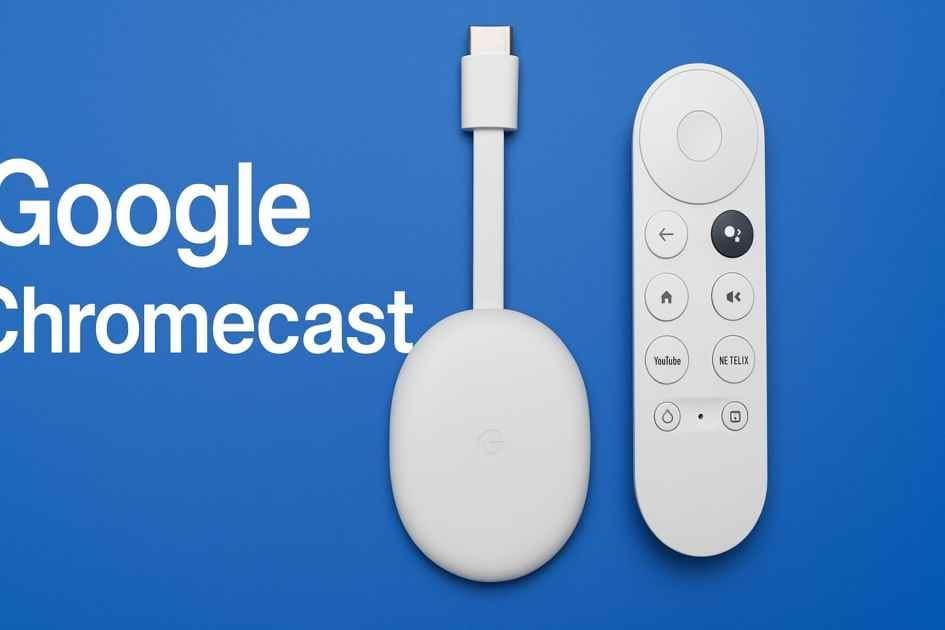
Chromecast is popular because it is:
- Affordable — a low cost way to add streaming to an HDTV.
- Versatile — supports video, music, photos, and screen casting from many devices.
- Portable — easy to take on trips or between rooms.
- Simple — setup and everyday use are straightforward for most people.
Common scenarios include upgrading older TVs, sharing photos and videos on a big screen, casting music to a living room system, and mirroring a browser tab for presentations.
Step by Step Setup Guide
Follow these basic steps for a smooth setup:
- Plug the Chromecast into an HDMI port on your TV and connect power. Some models can take power from a TV USB port, but a wall adapter is recommended for stability.
- Turn the TV on and switch to the HDMI input used by the Chromecast.
- On your mobile device, install and open the setup app and follow the on screen instructions to detect and configure the Chromecast.
- Connect the Chromecast to your Wi Fi network. Make sure the device you will cast from is on the same network.
- Sign into your account on the TV interface if using a model with Google TV, and install the apps you use.
- Test casting by opening a supported app and tapping the cast icon to send content to the TV.
Tips: Keep the Chromecast firmware updated through the setup app, and place the device where it has good Wi Fi reception.
Using Chromecast Day to Day
- Casting video and audio: Open a casting enabled app on your phone or tablet and tap the cast icon to play content on the TV.
- Using the remote: On models with a remote, you can browse apps directly on the TV, control volume, and use voice search.
- Mirroring a screen: Use a browser or device feature to mirror tabs or your entire screen when you need to present slides or web pages.
- Multiroom audio: Some Chromecast compatible setups let you group speakers for synchronized music playback.
Chromecast With Google TV vs Phone Controlled Chromecast
Choose a Google TV model if you prefer:
- A remote for couch friendly navigation
- A home screen with recommendations and profiles
- Native app installation and account management
Choose a basic casting dongle if you:
- Rely primarily on your phone for control
- Want the lowest-cost option
- Don’t need a remote-driven interface
Best Apps and Content Types to Use with Chromecast
Chromecast works well with most mainstream streaming apps that include a cast button. Video and music streaming services, photo and slideshow apps, and many radio and podcast apps support casting. You can also cast a browser tab for web content, presentations, and live demos.
Troubleshooting Common Issues
Here are common problems and practical fixes:
- No cast icon appears: Confirm both the sending device and Chromecast are on the same Wi Fi network and that the app supports casting. Restart the app if needed.
- Buffering or poor quality: Check internet speed and router placement. Reduce other network traffic or switch to a wired connection where possible.
- Chromecast not detected: Power cycle the Chromecast and your router. Use the setup app to verify device status.
- Remote unresponsive: Replace batteries, re-pair the remote following the on screen steps, or reboot the Chromecast.
- App playback stops when phone sleeps: On some devices you can configure app permissions or battery settings so the casting session continues uninterrupted.
If factory reset becomes necessary, follow the setup steps carefully after reset and ensure your account credentials are ready.
Privacy and Security Considerations
Casting is local network activity, so treat your home network like any other place where devices can interact:
- Use a strong Wi Fi password and modern encryption on your router.
- Keep software and firmware up to date to reduce exposure to security issues.
- Understand guest features: they make guest casting easier, but check how guest access works before enabling it.
- Avoid sharing sensitive content when casting in public or semi public spaces.
Performance and Picture Quality Expectations
Performance depends on the model, your TV, and your internet connection. A 4K capable Chromecast will deliver the best picture on a 4K TV, but it also requires a fast and stable internet connection. Older or lower end models will scale to the TV but cannot output higher than their maximum supported resolution.
Buying Guide — How To Choose the Right Chromecast
Ask yourself the following before buying:
- Do I need 4K and HDR? Buy a 4K capable model if you have a 4K TV and reliable internet.
- Do I want a physical remote and a TV interface? Choose a model with a dedicated remote and built in interface.
- Is budget the main concern? A basic casting dongle or HD model will save money while providing core casting features.
- How long do I need support? Consider the product lifecycle and how often you expect to upgrade devices.
Checklist for buyers: HDMI port availability, TV resolution support, internet bandwidth, remote preference, and willingness to update software.
Pros and Cons — Balanced View
Pros
- Low cost way to add smart features to many TVs.
- Easy to use for people who prefer mobile control.
- Models with a remote offer a modern TV experience.
- Portable and simple to move between TVs.
Cons
- Not all models support 4K or the latest video formats.
- Older dongles lack a built in UI and require a casting device.
- Occasional software updates can change the experience and require user attention.
Practical Use Cases and Recommendations
- Living room family TV: Use a Chromecast with a remote for easy browsing and family profiles.
- Bedroom or guest room: A compact HD dongle is cost efficient and less likely to be misused.
- Phone first users: If you prefer controlling media from your phone, a basic casting device works well.
- Frequent travelers: A compact Chromecast fits in a bag and can work in hotel rooms where Wi Fi access is available.
Maintenance and Best Practices
- Keep the device ventilated to avoid overheating.
- Update firmware when prompted by the setup app.
- Use a surge protector for wall powered setups to protect the device.
- Avoid repeated factory resets unless necessary and follow recovery instructions carefully.
Conclusion
Google Chromecast remains a straightforward, flexible, and affordable way to add smart streaming to almost any TV. Whether you want a remote and a full TV interface or a minimal casting solution you operate from your phone, there is a Chromecast option to match. Consider your TV resolution, how you prefer to control content, and your network reliability when choosing a model. Keep software updated, secure your network, and use the setup app to keep the device running smoothly.
If you found this guide helpful, tell me which model you own or are considering and I will help you pick the right settings and apps for your setup.
FAQ
Can I use Chromecast without Wi Fi?
No, Chromecast requires a network connection to stream content. Some specific offline workflows exist but they are limited and not reliable for regular use.
Does Chromecast support 4K and HDR?
Some Chromecast models support 4K and HDR. To get full benefits you need a compatible TV and a fast internet connection.
Do all Chromecast models include a remote?
No. Newer models with a built in TV interface include a remote, while older casting dongles rely on a phone, tablet, or computer to control playback.
How do I fix buffering during playback?
Check internet speed, reduce the number of devices on your network, move the router closer to the Chromecast, or use a wired connection where possible.
Can I mirror my laptop or browser to Chromecast?
Yes. You can cast a browser tab or mirror a desktop from supported devices. Performance may vary based on network conditions.
Is guest casting safe?
Guest casting is convenient but understand how it works before enabling it. Guest mode is designed to allow nearby devices to cast without joining the Wi Fi, but you should monitor when guest features are active.
What should I do if my Chromecast is not detected during setup?
Restart the Chromecast and your router, ensure your phone is on the same network, and follow the setup app prompts carefully to complete configuration.
How do I keep my Chromecast secure?
Use a strong Wi Fi password and modern encryption, apply firmware updates when offered, and avoid exposing the device on public or unsecured networks.